
Advanced Home App: How to Set It Up and Connect It to Alexa and Google
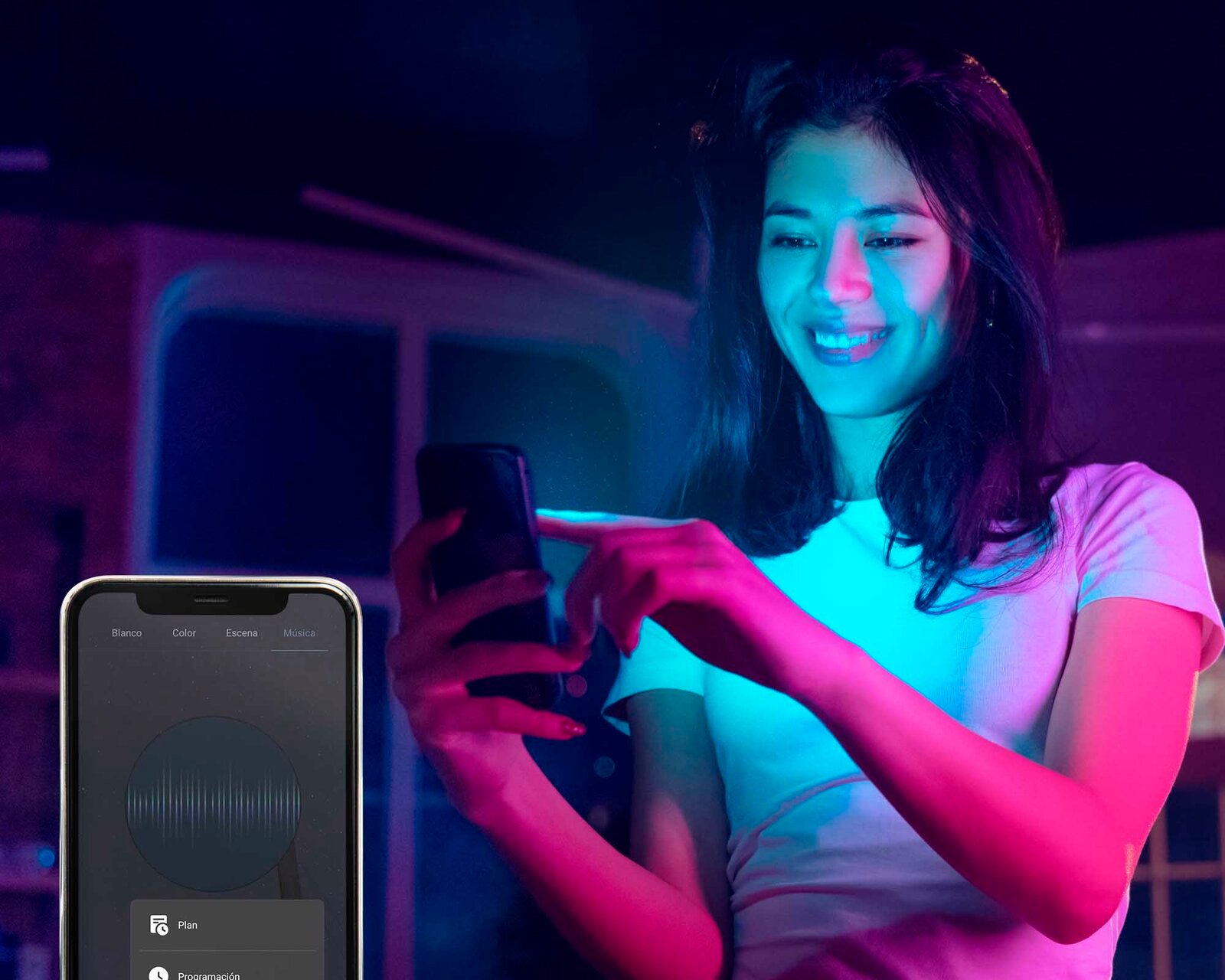
Advanced Home products are managed from a single app: cameras, bulbs, switches, outlets, doorbells and locks. If this is your first smart product, this guide takes you from the box to having it working, and to controlling it with your voice.
Before you start
- An iPhone or Android phone with the Advanced Home app (free on the App Store and Google Play; you can also scan the QR code on your box or manual).
- Your 2.4 GHz Wi-Fi network and its password. Most smart products don't connect to 5 GHz networks.
- The product plugged in or charged, close to your router while you set it up.
1. Create your account
Open the app, sign up with your email or mobile number and create your home. Add the rooms you use (living room, bedroom, kitchen): later this will help you organize your devices.
2. Add your first product
1. Tap "+" (Add device).
2. Choose the product type or, on many models, let the app detect it on its own.
3. Enter the name and password of your 2.4 GHz network.
4. Follow the prompts: on most cameras, the app will show a QR code for the camera to scan.
5. Give it a clear name, like "Living room light" or "Front door camera". That's the name you'll use with your voice.
If it doesn't connect, check the FAQ section or your model's manual to put it in pairing mode.
3. Share control with your family
From your home settings you can invite other people. Each person downloads the app, creates an account and, after accepting the invitation, controls the same devices from their own phone.
4. Create scenes and automations
This is where your home becomes truly smart:
- Scenes you trigger with one tap: "Movie" dims the bulbs and turns on the LED strip.
- Schedules: the entrance bulb turns on at 7 p.m.
- Automations: if the camera detects motion at night, the light turns on.
5. Connect it to Alexa or Google Home
Most Advanced Home products work with Amazon Alexa and Google Home (each product page says so). First add your devices in the Advanced Home app, then link your Advanced Home account in the Alexa or Google Home app; your product's manual includes the steps. When you're done, your devices show up with the names you gave them.
Some examples of what you can ask:
- "Alexa, turn off the living room light."
- "Hey Google, set the bedroom to blue."
- "Alexa, show me the front door camera," on a compatible smart display.
Products to start with
If you're just getting started, these are good first steps:
- A color bulb like the LC-1428.
- A smart switch like the LC-1268 (requires a neutral wire).
- A double wall outlet like the LC-1451.
- An indoor camera like the LC-1445.
Stuck on a step? Message us on WhatsApp with your product's model and we'll help. Advanced Home products are sold at The Home Depot.